Set up SEO for a page
Control the title and description Google shows for each page.
Everything you need to go from a blank screen to a published website - written in plain language, no jargon.
13 step-by-step guides · Keyboard shortcuts · FAQ
Six short steps from a blank account to a live page. Work through them in order - the times below are reading times, the building itself is quicker.
Start with step 1Pick the area you are stuck on - each topic lists its own guides.
Short video walkthroughs cover the same ground as these guides.
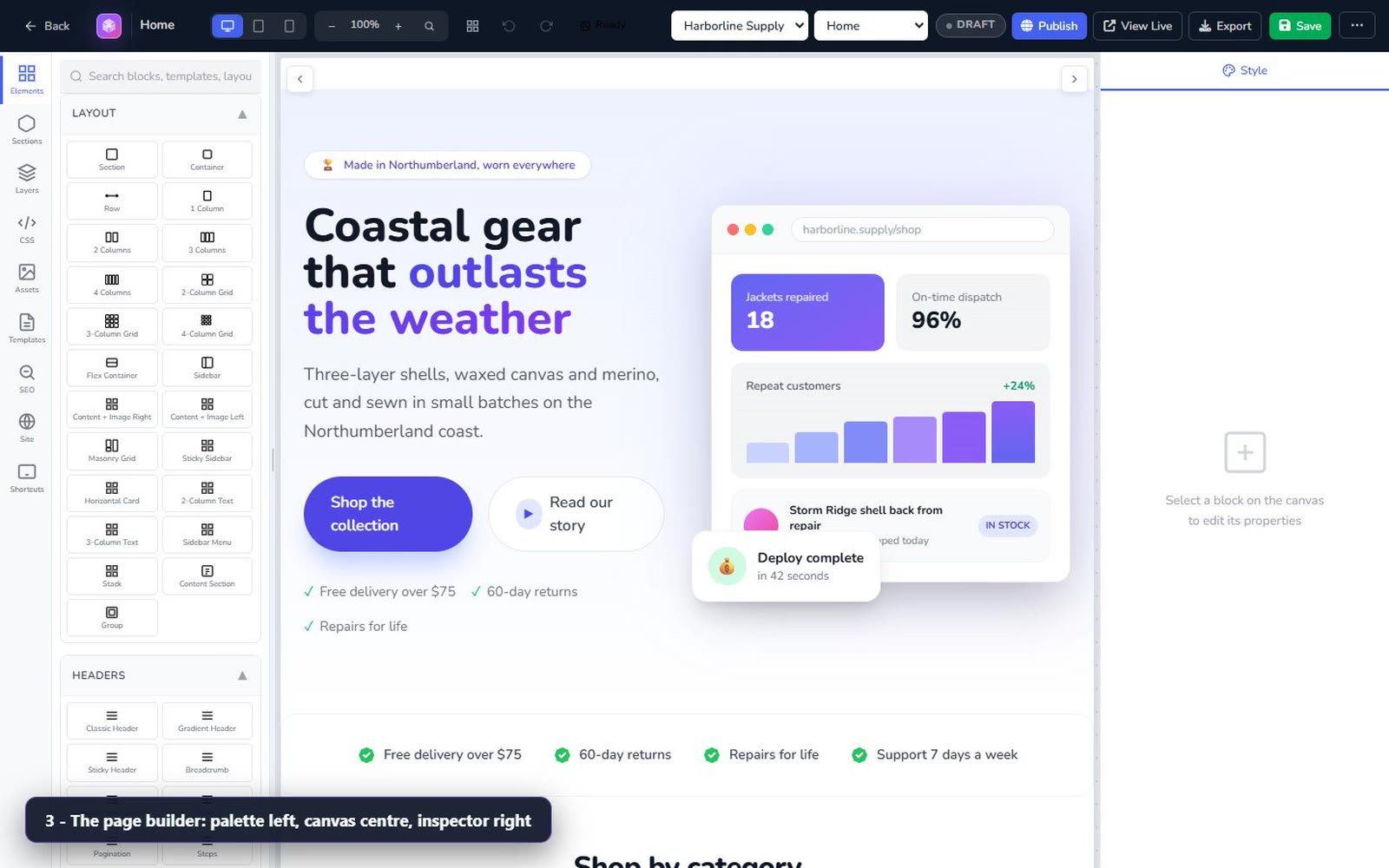
The recorded walkthrough of this guide plays at the top of the page. Watch the whole thing unfold in the live app, then follow the written steps at your own pace.
Play the walkthroughQuickstart, the builder tour, themes, media, ecommerce and support - six short videos.
Twelve keyboard shortcuts cover almost everything you do repeatedly. Jump to the cheat sheet and try two of them.
These work anywhere in the builder, except while you are typing into a text field.
| Ctrl + S | Save the page |
| Ctrl + Z | Undo |
| Ctrl + Shift + Z | Redo |
| Ctrl + C / V | Copy / paste selected blocks |
| Ctrl + D | Duplicate the selected block |
| Ctrl + A | Select all blocks |
| Ctrl + = / - | Zoom in / out |
| Ctrl + 0 | Reset zoom to 100% |
| Delete / Backspace | Delete the selected block |
| Space + drag | Pan the canvas |
| Ctrl + scroll | Zoom the canvas |
| Ctrl + click | Select several blocks |
Every term the platform uses in its own interface, in plain language.
The questions new users ask most.
Searching this guide solves most things. If it does not, a human will help you.